Last checked: June 2026 — app features and pricing may have changed. Verify current details on each tool’s website.
The number surprised me. Not because it was huge. Because I had no idea it was happening.
I’d been spending $47 a month on subscriptions I’d completely forgotten about. Not one big thing — four small things. A streaming service I stopped using in February. A news app I’d signed up for during a trial and never canceled. Two others I genuinely couldn’t identify until I went looking.
AI found them. I almost wouldn’t have.
If you’ve been curious about how to use AI to track your spending but weren’t sure where to start or whether it would actually tell you anything you didn’t already know — here’s what happened when I tried it.

What You Need Before You Start
- A bank account or credit card (you’ll be reviewing your transaction history)
- A computer or smartphone
- An email address for account creation
- About 30–45 minutes for initial setup
- Optional: downloaded bank statements as PDF or CSV files (most banks let you export these)
One important note before you start: Never share your actual account login credentials, Social Security number, or passwords with any AI tool. The tools I use here either connect through secure read-only bank links or work with exported files you upload yourself. If anything ever asks for your bank password directly, stop immediately.
Why I Was Skeptical About AI Budgeting (And What Changed My Mind)
I’d heard the phrase “AI budgeting” and assumed it meant another app that makes pretty charts and tells me I spend too much on coffee. I have a drawer full of metaphorical apps like that.
What changed my mind was when someone in a Reddit thread I follow described using ChatGPT — that’s the AI chatbot from OpenAI, the one you’ve probably seen mentioned in news coverage — not to replace a budgeting app, but to actually analyze their spending in plain English. They downloaded their bank transactions as a spreadsheet, pasted the data in, and asked questions.
That was different from what I’d tried before. Not a dashboard. A conversation.
I tried it the following Saturday morning.
What the Data Actually Showed Me
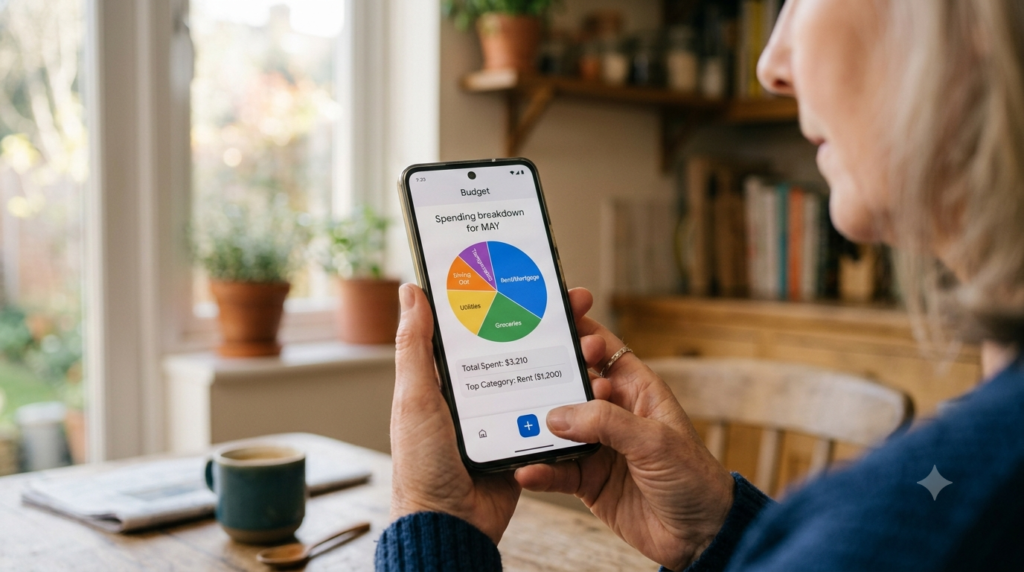
I exported three months of transactions from my bank as a CSV file (basically a spreadsheet). I opened ChatGPT, pasted in the transactions after removing my account numbers and name, and asked: “Can you categorize these transactions, show me where most of my money is going, and flag anything unusual?”
It took about ninety seconds to respond.
The categories were roughly right — groceries, restaurants, subscriptions, utilities, gas. What I hadn’t expected was the subscription breakdown. It listed every recurring charge, the amount, the frequency, and — here’s the part that stung a little — how much each one costs annually. Not monthly. Annually.
That $8.99 streaming service I forgot about? $107.88 a year.
I canceled three subscriptions that same day.

The Dedicated Apps That Do This Automatically
If downloading spreadsheets and pasting data into ChatGPT sounds like too many steps, there are apps built specifically for AI-powered spending tracking. Here’s what I’ve tested.
Cleo — meetcleo.com
Cleo is an AI chatbot for your finances. You connect your bank account through a secure read-only link (it can see transactions but cannot move money), and then you can chat with it like you’d chat with a person.
You can ask things like “What did I spend on food last month?” or “Am I on track with my grocery budget this week?” and it responds in actual sentences. There’s also a “roast mode” where it tells you about your bad spending habits in a tone that’s surprisingly entertaining. I was not expecting to laugh at my own financial data.
The free tier gives you basic spending summaries and category breakdowns. Some features — like savings goals and detailed analytics — require a paid tier. Check their current pricing before signing up, as it’s changed a few times since I started using it.
YNAB (You Need A Budget) — youneedabudget.com
YNAB uses a budgeting method where every dollar gets assigned a specific purpose — a “job.” It also has AI features that automatically read and categorize your bank transactions.
I’ll be honest: YNAB has a learning curve. The method takes some getting used to. But once it clicks, it’s very effective for people who want a structured system rather than just tracking after the fact.
YNAB is not free — check their site for current pricing, and note that they offer a free trial period. I’d call it worth the cost if you’ll actually use the system, and not worth it if you’ll set it up and forget about it.
The Low-Tech Option That Actually Works
If you don’t want to connect any apps to your bank account, here’s what I do once a month:
I export my bank transactions as a PDF or CSV file, open ChatGPT (free version), paste in the transaction list (with any identifying account information removed), and ask it to summarize my spending by category and flag anything that looks unusual.
It takes about 15 minutes total. I learn something almost every time.
Privacy: What to Share and What to Never Share
This is the part I want to be very direct about.
Share: Transaction amounts, merchant names, dates. General numbers like “my monthly income is around $X” or “I budget about $Y for groceries.” These are fine.
Never share: Your full name plus account numbers. Social Security numbers. Bank login credentials. Passwords of any kind. Your full address combined with financial details.
AI tools work well with anonymized financial data. You don’t need to hand over your identity for them to give you useful insights.
If you’re using a dedicated app like Cleo or YNAB, they use industry-standard bank connections (often through a service called Plaid) that are read-only and don’t expose your login details. But always read a new app’s privacy policy before connecting your bank — that’s true for any financial app, AI-powered or not.
What I Found After Three Months of Tracking
Here’s the honest summary of what using AI to track my spending actually changed for me.
The $47/month in forgotten subscriptions was the biggest immediate win — that’s $564 a year just sitting there being charged. Finding and canceling those took me about twenty minutes.
I also realized I was consistently overspending on eating out on Sunday evenings specifically — not the whole week, just Sundays. That specific pattern never would have shown up in my head. I saw it when the AI categorized everything by day of the week and noted the spike.
What hasn’t changed: I still sometimes spend more than I mean to on things I don’t need. AI tracking tells you what you did — it doesn’t make you do anything differently. That part is still on you.
But knowing is genuinely useful. I’d rather know. tools to help put that savings toward something.
Where Should You Start?
If you want the lowest-friction starting point, try this: download one month of transactions from your bank, open ChatGPT’s free version, and paste in the data with identifying information removed. Ask it to categorize your spending and flag recurring charges.
Spend fifteen minutes with what it gives you. I’d be surprised if it doesn’t find something worth knowing.
If you want something more automatic, Cleo or YNAB are worth looking at — but start with the free manual version first so you understand what you’re looking for before you connect anything to your bank.
The number might surprise you too.
Pingback: 7 Free AI Tools That Actually Save You Money (I Tested Them) - AI Beginner Journey