Last checked: June 2026 — features and pricing may have changed. Always verify on the tool’s website before signing up.
Three weeks ago I almost paid a subscription fee for an AI writing tool because I assumed the free version wouldn’t be good enough.
Then I tested the free version first. And I canceled the upgrade.
That happened twice more that same week, and I realized I’d been operating on an assumption that “free AI” meant low-quality demos. In 2026, that’s no longer true. The free tiers of several major AI tools have genuinely caught up — not for everything, but for a lot of what normal people actually need.
If you’re looking for free AI tools that actually save you money, this is what I found after testing them myself. Some of these surprised me. One was a disappointment.

What You Need Before You Start
- A computer, tablet, or smartphone with internet access
- An email address (to create accounts)
- About 30 minutes to set up your first few tools
- No credit card required for any of the free tiers listed here
The One That Saved Me Money Before I Even Realized It Was Doing That
ChatGPT Free — chatgpt.com
ChatGPT is the AI chatbot from OpenAI, the company you’ve probably seen in news headlines. Think of it like a very patient research assistant who never gets tired of your questions and never charges by the hour.
The free version gives you access to a capable AI that can help you write emails, summarize long documents, answer questions, and — this is the part I didn’t expect — help you save actual money through negotiation.
Here’s what I mean: I was paying $94/month for a cable and internet bundle. I asked ChatGPT to help me write a cancellation-inquiry email — the kind that often prompts a retention offer. ChatGPT wrote a polite, specific email in about forty seconds. I sent it, got a call back within two days, and my bill dropped to $71/month. That’s $276 a year for forty seconds of AI assistance.
I’m not saying it works every time. But I’ve now used that same approach for two other bills. Results vary a lot — but it costs nothing to try.
What the free tier includes: Unlimited basic conversations with GPT-4o mini, plus limited daily access to more advanced responses. For most beginners, the free tier is more than enough.
What it can’t do for free: Image generation is limited, and very long document analysis may hit usage caps.
The One I Use for Reading Long, Boring Documents
Claude Free — claude.ai
Claude is the AI assistant from Anthropic (a different AI company). What I use it for specifically: pasting in long documents I don’t want to read cover to cover — insurance policies, rental agreements, terms and conditions — and asking it to summarize the key points and flag anything I should pay attention to.
Last month I pasted in a 14-page benefits document my employer sent. Claude summarized it in about sixty seconds and pointed out that I was eligible for a reimbursement I hadn’t known about. That reimbursement was $180.
The free tier is genuinely useful for this. It handles long text well and gives clear, organized summaries.
What the free tier includes: A generous daily message limit for most users, access to Claude’s core models, and very good long-document handling.
What to watch out for: The free tier has daily limits. If you hit them, you wait until the next day. Hasn’t been a problem for me yet.
The One Built Into Google (You Might Already Have It)
Google Gemini Free — gemini.google.com
Gemini is Google’s AI tool. If you use Gmail, Google Docs, or Google Calendar, Gemini is woven into a lot of those tools now — often without you having to do anything special to access it.
What I use it for: meal planning. I give it my weekly grocery budget, tell it what proteins I have on hand, and ask it to plan out dinners for the week with a shopping list. My grocery spending dropped about $31 in the first month I tried this. Not because Gemini is magic — but because it helped me stop over-buying and wasting food.
I also use it to summarize long emails before I decide whether they need a response.
What the free tier includes: Full access to Gemini’s core model, integration with Google Workspace apps (Gmail, Docs, Calendar), and image understanding. Check Google’s site for current details on what’s available at the free vs. paid tiers — features have been shifting.
The One for Creating Graphics Without a Designer
Canva AI Free — canva.com
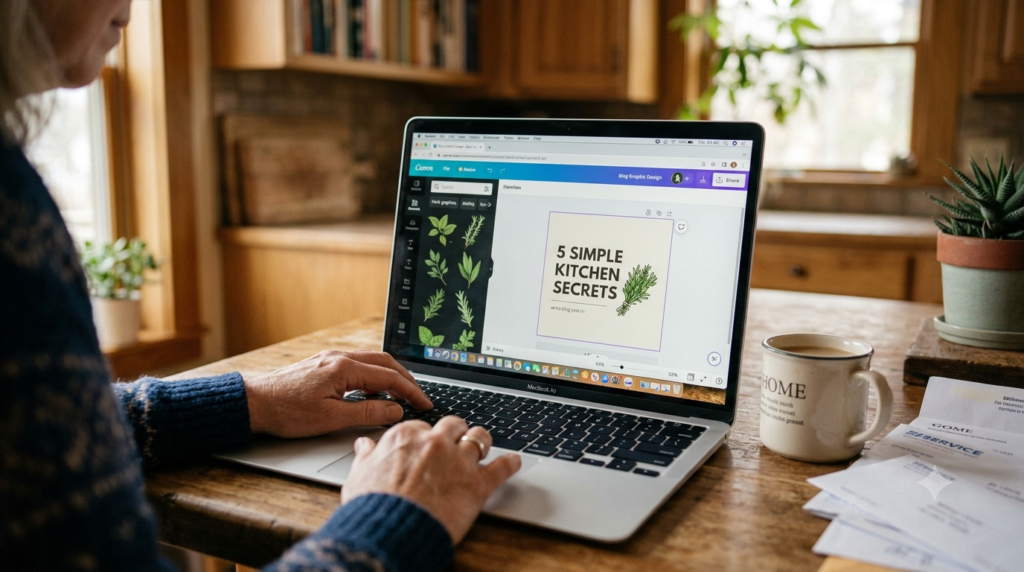
Canva is a design tool that’s been around for years, but the AI features built into the free tier are genuinely useful now. If you have a blog, an Etsy shop, or any kind of side project that needs graphics, Canva’s free version can produce professional-looking thumbnails, social media images, and simple ads.
I use it for blog header images. It takes me about twelve minutes now. Before Canva, I was either paying someone $15 per image or using nothing at all.
The “Magic Design” feature lets you describe what you want in plain English and it generates a layout. It’s not perfect — I usually tweak the result — but it gets me 80% of the way there in seconds.
What the free tier includes: Thousands of templates, basic AI image generation, Magic Design, background remover (limited uses), and access to a huge image library. Check Canva’s current pricing for the exact limits on AI features, as they update frequently.
What it can’t do for free: Some premium templates and advanced AI features require Canva Pro.
The One for Research Without Getting Buried in Ads
Perplexity AI Free — perplexity.ai
Perplexity is an AI-powered search tool. What makes it different from a regular Google search: it reads multiple sources and gives you a summarized answer with citations, instead of a list of links you have to click through yourself.
I use it when I’m researching a purchase, a health question, or a financial topic and I want a quick, sourced summary rather than fifteen browser tabs. It’s genuinely saved me time — and time, for most of us, is money.
It also cites its sources, so you can verify what it’s saying, which matters for anything health or finance-related.
What the free tier includes: Unlimited basic searches with cited answers, follow-up questions, and decent daily access to their Pro model.
One honest note: Always verify health or financial information from Perplexity with a professional. It’s great for research, not for replacing a doctor or financial advisor.
The One That Was a Bit of a Disappointment (But Still Useful)
Grammarly Free — grammarly.com
I expected more from Grammarly’s free tier based on the marketing. What you actually get for free is solid grammar and spelling correction — which is genuinely helpful if you’re writing emails, blog posts, or anything professional.
What you don’t get for free: the tone suggestions, plagiarism checker, and most of the “writing style” features. Those are locked behind a paid plan.
So: useful as a free spell-checker with some light grammar help. I still use it. But I went in expecting more and found less, so I’m being honest about that here.
The One for Budgeting (More on This in a Dedicated Post)
Cleo Free — meetcleo.com
Cleo is an AI-powered budgeting app — think of it as a chatbot that tracks your spending and answers questions about your money in plain language. You connect your bank account (read-only access), and it analyzes your transactions.
I’ll cover this in much more depth in a dedicated post on AI spending trackers, but the short version: Cleo’s free tier gives you spending summaries, basic budget categories, and a “roast mode” that’s surprisingly funny about your bad spending habits.
The free tier is limited — you can’t set savings goals or access the full analytics without upgrading — but it’s a solid starting point for understanding where your money is going.
How Much Can You Actually Save?
That’s the question, right? And I’m going to be honest: it depends entirely on how you use these tools and whether you actually act on what they tell you.
From my own four months of testing:
- Negotiating bills with ChatGPT: saved $276/year (so far — this is ongoing)
- Finding a reimbursement with Claude: $180 one-time
- Grocery planning with Gemini: roughly $31/month saved
- Replaced paid graphic design with Canva: $45–$60 saved over three months
That’s real money. Not huge. But not nothing.
What I can’t promise is that you’ll get the same results — your bills, your situation, and how much time you put into this all matter. What I can say is that all of these tools cost exactly nothing to try.
Start with ChatGPT and spend thirty minutes exploring it this week. You’ll figure out quickly whether it’s useful for your life.

Pingback: How I Used AI to Track My Spending (And What It Actually Found) - AI Beginner Journey
Pingback: ChatGPT for Seniors: What It Can Do, What It Can't, and What Surprised Me - AI Beginner Journey